Easy JPG to PDF Converter Online
Convert JPG, JPEG, PNG and WebP images into PDF quickly and easily.
Select Images
JPG, JPEG, PNG and WebP supported
Selected Images
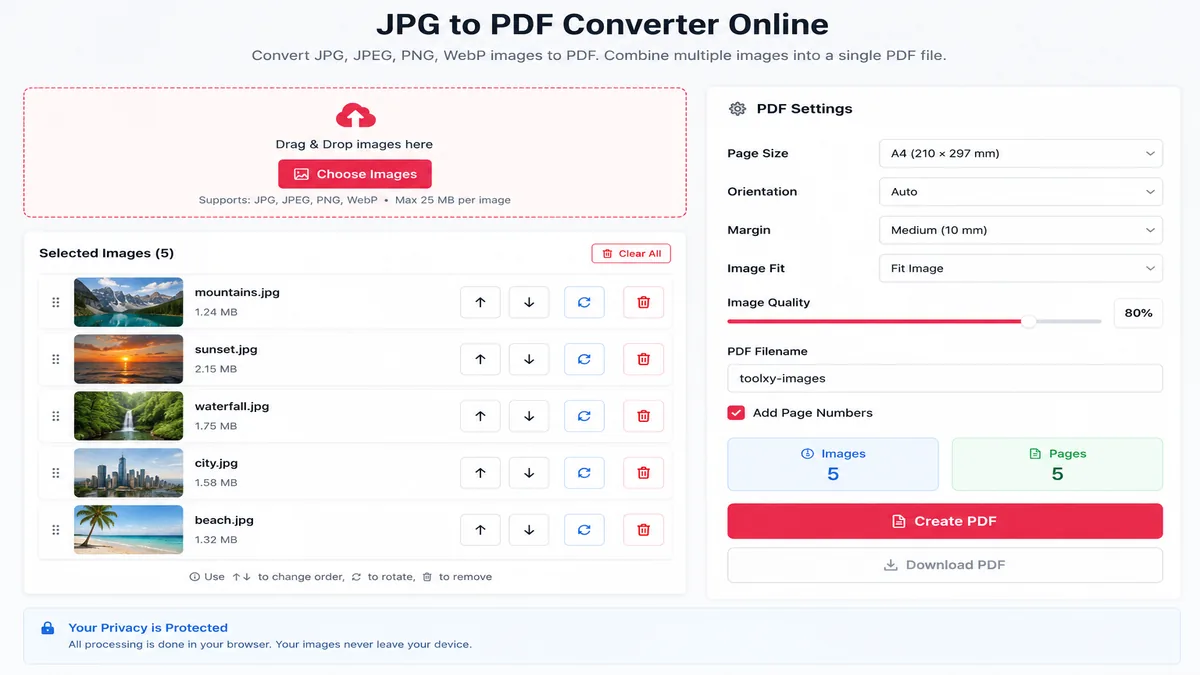
JPG to PDF Converter Online
JPG to PDF Converter Online is a free browser-based tool that lets you convert JPG, JPEG, PNG and WebP images into PDF documents. You can upload one or multiple images, arrange their order, rotate images and download the finished PDF.
If you are looking for a simple way to convert JPG to PDF online, Toolxy provides an easy solution that works on mobile phones, tablets and computers.
How to Use JPG to PDF Converter Online
Using the Toolxy JPG to PDF converter is simple. Follow these steps to convert your images into a PDF document.
Select Images
Tap Choose Images and select JPG, JPEG, PNG or WebP files from your phone, tablet or computer.
Check Your Images
Your selected images will appear in the image list. You can see the thumbnail and filename before creating the PDF.
Arrange Pages
Use the up and down buttons to change the order of your images. The order determines the PDF page sequence.
Rotate Images
Use the rotate button if an image is sideways or needs a different orientation.
Choose Settings
Select your page size, orientation, margin, image fit and quality before generating the PDF.
Create & Download
Click Create PDF. After processing finishes, click Download PDF to save the document.
Convert JPG to PDF Online
Converting JPG images to PDF is useful when several photos or scanned pages need to be shared as one document. Instead of sending individual image files, you can use a JPG to PDF converter to create a single PDF.
Toolxy supports single-image as well as multiple-image conversion. This makes the tool useful for photographs, scanned documents, receipts, screenshots, notes and other image-based files.
Convert Multiple JPG Images to One PDF
If you have multiple JPG images, you can select them together and combine them into one PDF document. Before creating the PDF, you can change the image order and rotate individual images.
- Select multiple JPG or JPEG images.
- Arrange images in the required order.
- Rotate individual images when needed.
- Select the PDF page size.
- Choose portrait or landscape orientation.
- Set the page margin.
- Adjust image quality.
- Create and download one PDF file.
JPG, JPEG, PNG and WebP to PDF
The converter supports common image formats, making it useful when your photos or documents are saved in different formats.
JPG to PDF on Mobile
You can use the JPG to PDF Converter Online from a modern mobile browser. This is useful when your photos are already stored on your Android phone or iPhone.
Simply tap Choose Images, select the required photos, arrange them, choose your PDF settings and tap Create PDF.
A4 JPG to PDF Converter
For documents that need to be printed or submitted, A4 is a common page size. Toolxy lets you select A4 before creating the PDF.
You can also select A5, Letter or Legal page sizes depending on your requirements.
JPG to PDF Converter Features
- Convert JPG to PDF online.
- Convert JPEG images to PDF.
- Convert PNG images to PDF.
- Convert WebP images to PDF.
- Combine multiple images into one PDF.
- Reorder PDF pages.
- Rotate images before conversion.
- Choose A4, A5, Letter or Legal.
- Select portrait or landscape orientation.
- Adjust PDF image quality.
- Choose image fitting.
- Add page numbers.
- Choose a custom PDF filename.
- Use the tool on mobile and desktop.
Why Convert Images to PDF?
A PDF can be more convenient than sending many separate image files. For example, scanned pages can be combined into one document and multiple receipts can be stored in a single PDF.
- Share multiple images as one file.
- Create printable documents.
- Combine scanned pages.
- Organize receipts and records.
- Combine screenshots into one document.
- Prepare image-based documents for submission.
Useful Toolxy Tools
If you regularly work with images, these other Toolxy tools may also be useful:
Helpful PDF & Image Resources
For additional information about PDF files and image formats, you can refer to these established technical resources:
Frequently Asked Questions
How can I convert JPG to PDF online?
Select your JPG images with the Choose Images button, arrange them, select your PDF settings and click Create PDF. Download the PDF after processing is complete.
Can I convert multiple JPG images into one PDF?
Yes. You can select multiple JPG images and combine them into one PDF document.
Can I convert PNG to PDF?
Yes. Toolxy supports PNG images along with JPG, JPEG and WebP files.
Is the JPG to PDF converter free?
Yes. Toolxy provides this JPG to PDF converter free of charge.
Can I use the JPG to PDF converter on mobile?
Yes. The tool is designed to work with modern mobile browsers.
Can I change the order of JPG images?
Yes. Use the up and down buttons next to each image to change the page order.
Can I rotate an image before converting it?
Yes. Use the rotate button next to the selected image.
Can I create an A4 PDF from JPG images?
Yes. Select A4 from the Page Size option before creating the PDF.
Can I add page numbers to the PDF?
Yes. Enable the Add Page Numbers option before creating the PDF.
Can I choose a custom PDF filename?
Yes. Enter your preferred filename in the PDF Filename field.
Do I need to install software to convert JPG to PDF?
No. The converter works through a modern web browser.
Can I combine JPG and PNG images into one PDF?
Yes. Supported JPG, JPEG, PNG and WebP images can be combined into one PDF document.
Final Words
Toolxy's JPG to PDF Converter Online provides a simple way to convert images into PDF documents. You can convert one image or combine multiple images into a multi-page PDF.
With page ordering, rotation, page-size, margin, image-fit, quality and page-number options, you can customize the PDF before downloading it.