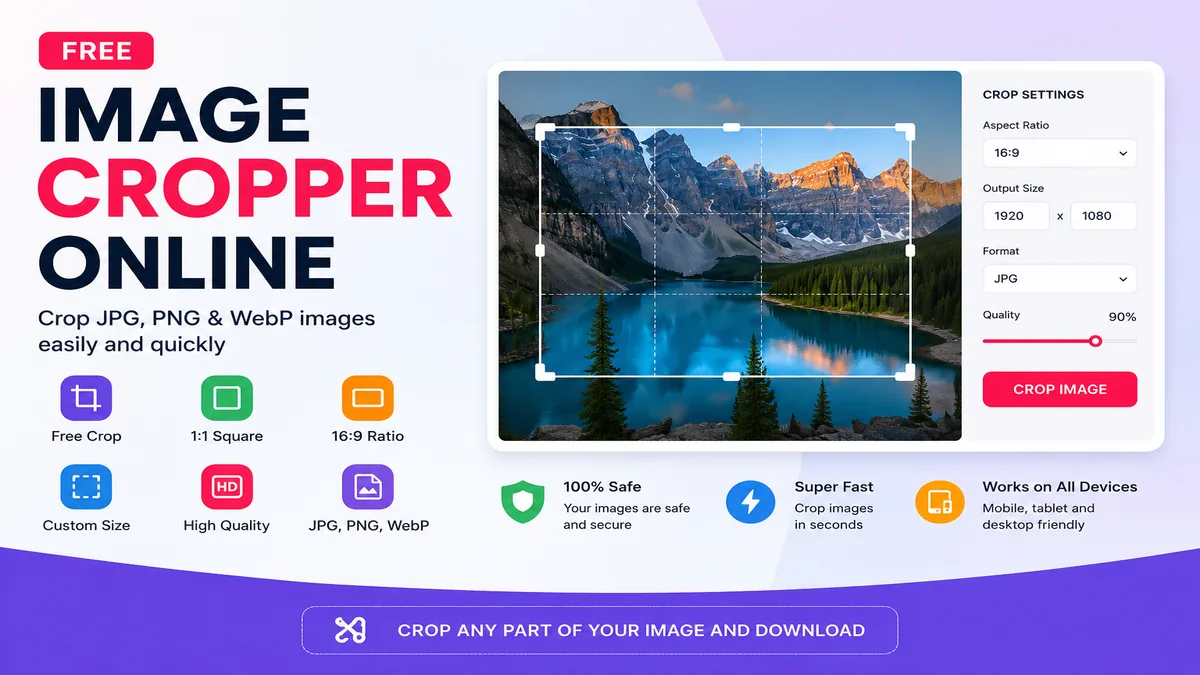
Image Cropper Online
Crop JPG, PNG and WebP images online with custom dimensions.
Select Image
Choose one JPG, PNG or WebP image from your device.
Crop Settings
Image Cropper Online
Image Cropper Online is a free browser-based tool that lets you crop JPG, PNG and WebP images quickly. You can select a specific area of an image, use common aspect ratios such as 1:1, 4:3 and 16:9, choose the output format and download the cropped image.
If you are searching for a simple way to crop image online, Toolxy provides an easy solution that works on mobile, tablet and desktop browsers without requiring separate image editing software.
How to Use Image Cropper Online
Cropping an image with Toolxy is simple. Select your image, choose the required crop ratio and drag over the image to select the area you want to keep.
Select an Image
Click the Choose Image button and select a JPG, PNG or WebP file from your phone, tablet or computer.
Choose Crop Ratio
Select Free Crop, 1:1, 4:3, 3:4, 16:9 or 9:16 according to the shape you need.
Select the Area
Drag your finger or mouse over the image to select the portion you want to keep.
Set Output Size
Enter a custom output width and height when you need a particular pixel dimension.
Choose Format
Select JPG, PNG or WebP according to your intended use.
Crop and Download
Click Crop Image. Once processing is complete, use the download button to save your cropped image.
Crop Image Online
Cropping removes unwanted areas from an image while keeping the part that matters. It can be useful when an original photograph contains extra background, unnecessary space or a composition that does not fit the required image area.
With an online image cropper, you can quickly select the useful part of a photo without opening a large desktop image editor. This can be especially convenient when preparing images for websites, blogs, social media profiles, online forms and digital documents.
Free Image Cropper Online
Toolxy provides a free image cropping tool for common image formats. You can select an image, create a custom crop area and download the result in a supported output format.
The tool is designed for quick everyday image editing and works directly in a modern browser. No separate image editing application is required for basic cropping.
Crop JPG, PNG and WebP Images
Crop Image to 1:1
A 1:1 crop creates a square image where the width and height are equal. Square images are commonly used for profile pictures, product graphics, social media posts and other square layouts.
Select 1:1 from the Aspect Ratio menu and then drag over the part of the image you want to keep.
Crop Image to 16:9
The 16:9 aspect ratio creates a wide landscape image. It is useful for many video thumbnails, website graphics, presentations and landscape content images.
Select 16:9 from the tool and position the crop area over the important part of your image.
Custom Image Cropper
Sometimes a preset ratio is not enough. A custom image cropper lets you select your own area and specify an output width and height. This is useful when a website, application or online form requires a specific image dimension.
For example, you can create a custom crop for a profile image, website thumbnail, product photo or document image.
Image Cropper for Mobile
The tool is designed for mobile browsers as well as desktop devices. On a phone, select an image from your device and drag over the image with your finger to create the crop selection.
Because the basic processing happens inside the browser, you can use the tool without installing a separate image editing application.
Common Image Crop Ratios
| Ratio | Shape | Common Use |
|---|---|---|
| 1:1 | Square | Profile pictures and square graphics |
| 4:3 | Landscape | Traditional photos and web images |
| 3:4 | Portrait | Vertical photos and graphics |
| 16:9 | Wide Landscape | Thumbnails and video-style graphics |
| 9:16 | Vertical | Mobile-oriented vertical content |
Crop Image Without Installing Software
Basic image cropping does not always require professional desktop editing software. A browser-based crop tool can be enough when you only need to remove unwanted areas or change the composition of an image.
Toolxy's image cropper is designed for these quick tasks while supporting common image formats and output options.
Image Cropper vs Image Resizer
An image cropper removes selected parts of an image. An image resizer changes the overall width and height of an image. These are different operations, although they are often used together.
If you first need to change the dimensions of an entire image rather than remove part of it, you can use the Image Resizer Online .
Useful Toolxy Image Tools
Helpful Image Resources
For additional information about image formats and image handling, these technical resources can be useful:
Frequently Asked Questions
What is Image Cropper Online?
Image Cropper Online is a browser-based tool that lets you select and remove unwanted areas from JPG, PNG and WebP images.
How do I crop an image online?
Select an image, choose a crop ratio if required, drag over the area you want to keep and click Crop Image.
Can I crop JPG images online?
Yes. JPG and JPEG images are supported.
Can I crop PNG images online?
Yes. PNG images can be cropped using the tool.
Can I crop WebP images online?
Yes. WebP images are supported.
Can I crop an image to 1:1?
Yes. Select the 1:1 aspect ratio to create a square crop.
Can I crop an image to 16:9?
Yes. Select 16:9 from the Aspect Ratio menu and create the crop.
Can I use a custom crop size?
Yes. You can enter custom output width and height values in pixels.
Can I crop images on my phone?
Yes. The tool is designed to work in modern mobile browsers and supports touch-based crop selection.
Can I convert the cropped image to another format?
Yes. You can choose JPG, PNG or WebP as the output format.
Can I change the image quality?
Yes. The quality control can be adjusted before creating the output image.
Is Image Cropper Online free?
Yes. Toolxy provides this online image cropping tool free to use.
Do I need to install software?
No. The basic cropping process works directly in a modern browser.
What is the difference between cropping and resizing?
Cropping removes part of an image, while resizing changes the overall width and height of the image.
Final Words
Toolxy's Image Cropper Online provides a convenient way to crop JPG, PNG and WebP images with free or preset aspect ratios. You can select a custom area, choose the output dimensions and download the resulting image in a supported format.
For a complete image workflow, you can combine the cropper with Toolxy's image resizer, image compressor, background remover and image conversion tools.
If you need to prepare a photo for a website, profile, social media post, thumbnail or online form, an online photo cropping tool can save time. Simply upload your picture, select the area you want to keep, choose a suitable aspect ratio and download the finished image. You can also use custom dimensions when a particular pixel size is required. JPG, PNG and WebP files can be handled according to the output format you need, making the process useful for everyday image editing on both mobile phones and computers.