Screen Recorder Online
Record your screen, window, or browser tab directly in your browser.
Your Recording
⬇ Download Recording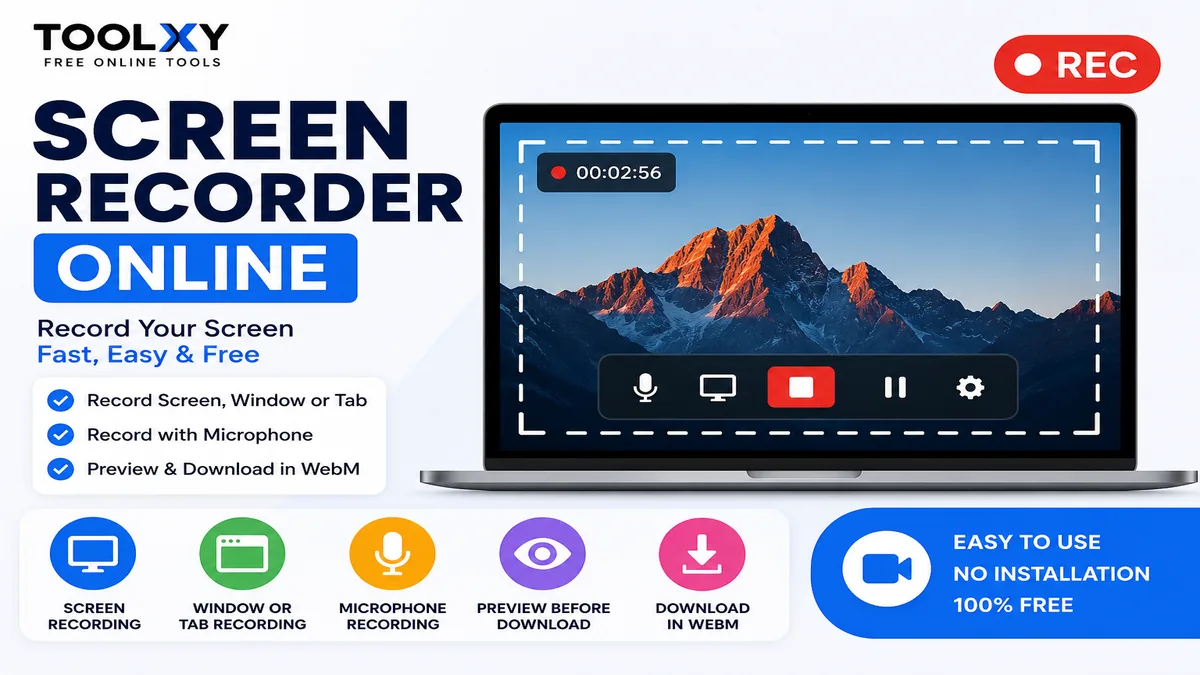
How to Use Screen Recorder Online
Toolxy Screen Recorder Online lets you record your screen directly from a supported web browser. You can record an entire screen, a specific application window, or a browser tab without installing desktop recording software.
Open the Toolxy Screen Recorder Online tool on a supported HTTPS browser page.
Click the Start Recording button to begin the screen capture process.
Select the entire screen, an application window, or a browser tab from the browser's screen-sharing dialog.
If you enabled microphone recording, allow microphone access when your browser asks for permission.
When you finish, click Stop Recording. Your recording will be prepared in the browser.
Preview the recorded video and use the download button to save the WebM recording to your device.
Screen Recorder Online – Record Your Screen Easily
A Screen Recorder Online is a convenient way to capture your screen without installing traditional recording software. With Toolxy, you can record your screen, application window, or browser tab directly from a supported browser.
Online screen recording can be useful for creating tutorials, explaining a website problem, recording a presentation, demonstrating software, preparing educational videos, and sharing a quick walkthrough with another person.
What Is an Online Screen Recorder?
An online screen recorder is a browser-based tool that uses the browser's screen-capture capabilities to record what you choose to share. Depending on your browser and device, you can select an entire display, a specific window, or an individual browser tab.
Toolxy's recorder is designed to keep the process simple. You open the tool, select the content you want to share, start recording, stop when finished, and then preview or download the resulting video.
Why Use a Screen Recorder Online?
Installing recording software is not always necessary for a quick recording. A browser-based screen recorder can be useful when you need a simple way to capture your screen without setting up a large desktop application.
- Record a browser tab for tutorials and demonstrations.
- Capture an application window for troubleshooting.
- Record presentations and demonstrations.
- Create simple educational walkthroughs.
- Capture a process that is difficult to explain with text alone.
- Download the finished recording for later use.
Screen Recorder Online Features
Screen, Window and Tab Recording
The recorder can use the browser's screen-sharing interface to let you choose what you want to capture. Depending on your browser, available choices can include the entire screen, a window, or a browser tab.
Microphone Recording
The microphone option can be enabled when you want to add voice narration to your screen recording. Your browser may request microphone permission before recording begins.
Recording Preview
After stopping a recording, you can preview the generated video directly on the page before saving it.
WebM Download
The browser recording can be downloaded as a WebM video file. WebM is a web-friendly video format supported by many modern browsers and applications.
Is Screen Recording Safe?
Screen recording should always be used carefully. Only share the screen, window, or browser tab that you intend to record. Avoid displaying passwords, private messages, payment information, authentication codes, or other confidential information in the selected recording area.
The browser displays a permission prompt before screen capture begins. Review the selected screen or window carefully before clicking the browser's share button.
Screen Recorder Online for Tutorials
Screen recordings are useful for creating step-by-step tutorials. Instead of describing every click with text, you can demonstrate the complete process visually. This can make software instructions easier for viewers to understand.
For example, you can record a browser tab while demonstrating an online tool, showing a website workflow, or explaining how a particular feature works.
Screen Recorder for Online Classes
Students, teachers, and trainers can use screen recording for educational demonstrations where recording is permitted. A screen recording can capture slides, browser-based lessons, software demonstrations, or other visual material.
Always respect the rules of your school, organization, course provider, and the copyright or privacy rights associated with the material being recorded.
Screen Recorder for Troubleshooting
A short screen recording can help explain a technical problem more clearly than a written description. You can demonstrate the steps that cause an issue and share the recording with a support team or developer.
Before recording, remove or hide sensitive information from the screen whenever possible.
Browser Requirements
Browser-based screen capture depends on the Screen Capture API and MediaRecorder support provided by the browser. For technical information about screen capture, you can read the official MDN Screen Capture API documentation .
You can also learn more about browser media recording through the official MDN MediaRecorder documentation .
Tips for Better Screen Recordings
- Close unnecessary applications and browser tabs before recording.
- Remove sensitive information from the screen.
- Choose the correct screen, window, or browser tab before sharing.
- Use a quiet environment when recording microphone narration.
- Keep tutorials focused and avoid unnecessary movements.
- Preview the recording before downloading or sharing it.
Related Toolxy Tools
If you work with digital content regularly, you may also find these Toolxy tools useful:
Frequently Asked Questions
Can I record my screen online without installing software?
Yes. A supported browser can provide screen-capture functionality without requiring a traditional desktop screen-recording application.
Can I record a browser tab?
Yes, when your browser provides the browser-tab option in its screen-sharing dialog.
Can I record my microphone?
The Toolxy recorder provides a microphone option. Your browser will ask for microphone permission when required.
Where is my screen recording saved?
The recording is generated in your browser and can be downloaded using the download button after recording has finished.
What format does the recorder download?
The browser-based recorder is designed to download the recording as a WebM video file.
Why can't I start screen recording?
Screen recording depends on browser support, HTTPS, permissions, and device restrictions. Try using a current desktop Chrome or Edge browser on the live HTTPS page and allow screen-sharing permission.
Does the recorder work on every mobile browser?
No. Screen-capture functionality can be restricted on mobile browsers and operating systems. Desktop browsers generally provide better support for browser-based screen recording.
Is screen recording free?
Toolxy's online screen recorder is designed as a free browser-based recording tool. Browser and device limitations may still apply.
Last Updated: August 2026
More Useful Tools & Guides from Toolxy
Explore these related Toolxy tools and guides to simplify everyday digital tasks. These resources can be useful alongside the Screen Recorder Online tool.
- Image Compressor – Compress Images Online
- Image Resizer – Resize Images Online
- Image Cropper – Crop Images Online
- Image to WebP Converter – Convert Images Online
- JPG to PNG Converter – Convert JPG Images
- PNG to JPG Converter – Convert PNG Images
- Password Generator – Create Secure Passwords
- QR Code Generator – Create QR Codes Online
- Text to QR Code – Convert Text into QR Codes
- Percentage Calculator – Calculate Percentages Online